


When you log in to the Scenic Listings Manager and go to “Bus routes” you’ll be presented with the routes dashboard — a page showing your listings with options to manage them.
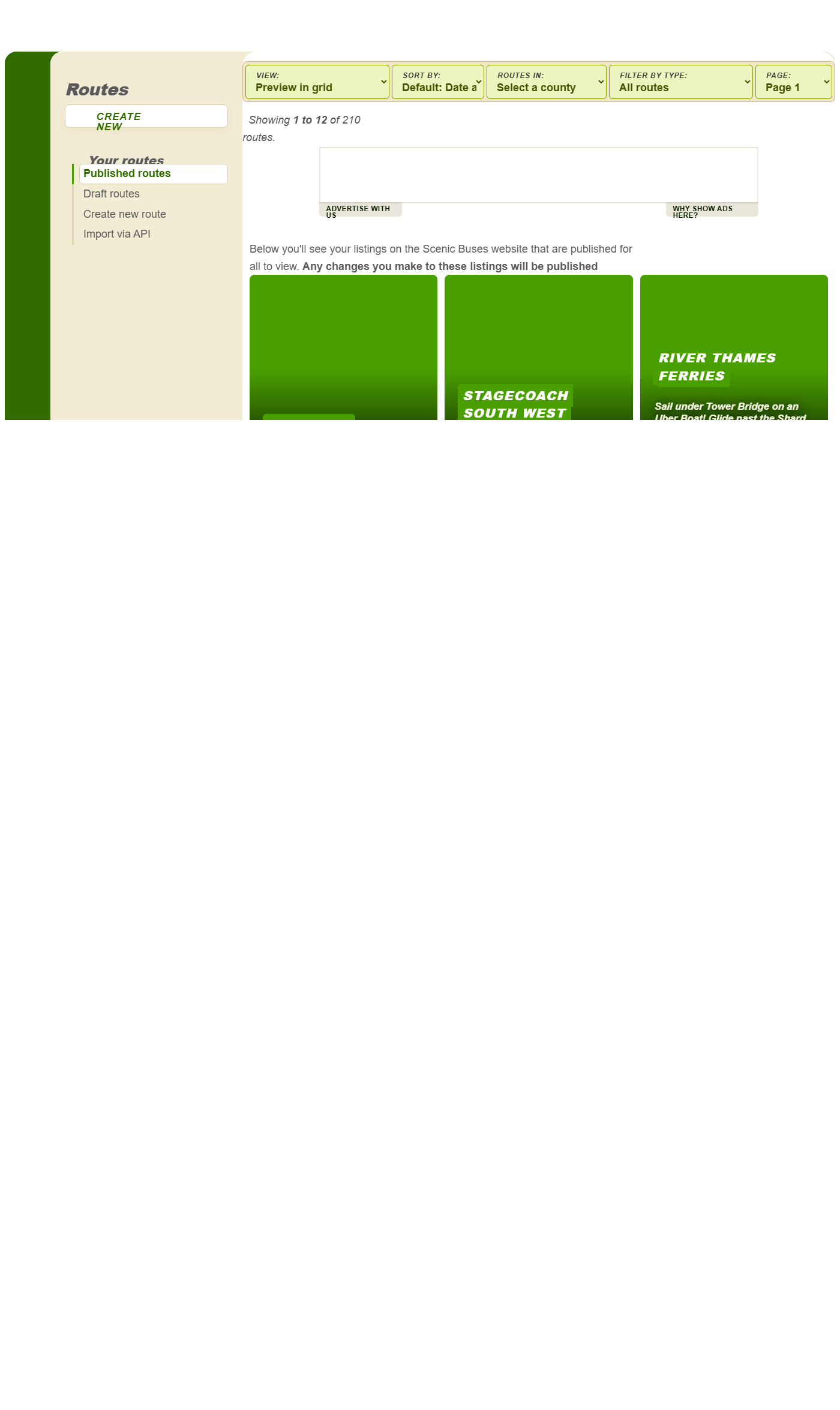
You can find out the difference between draft and published routes in the Scenic Docs.
Route listing pod
On this dashboard you’ll see each of your listings displayed in what we call the “Route listing pod” — the same format shown to users on the public website.
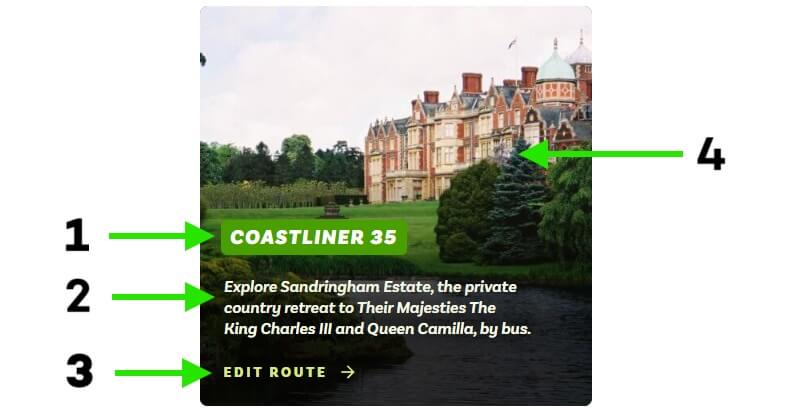
- Route brand or number
- Headline – a short description shown in the route listing pod and under the main image on your listing.
- Call to action — not editable. In the Manager it shows “Edit route”; on the public website it shows “View route”.
- Featured image – shown on the route listing pod and as the main image when viewing a listing.
Some routes have additional items — such as a marker for “Open top tour” — which you can control from within the Manager.
You can find out more about editing your route listing pod and the fields it contains in the Routes section of Scenic Docs.
Create a new route
From the routes dashboard you’ll see two options to create a new route:
- A “+ Create new” button in the left-hand navigation
- A “Create new route” link in the sidebar menu
These both do the same thing — use whichever you prefer. Find more information about adding a new route in the Routes section of Scenic Docs.
Leave a Reply