


We’ve designed the Scenic dashboard to be easy to use and understand. When you log in to the Scenic website you’ll see a “Your account” tab in the main navigation. It’ll look like this when you hover over it:
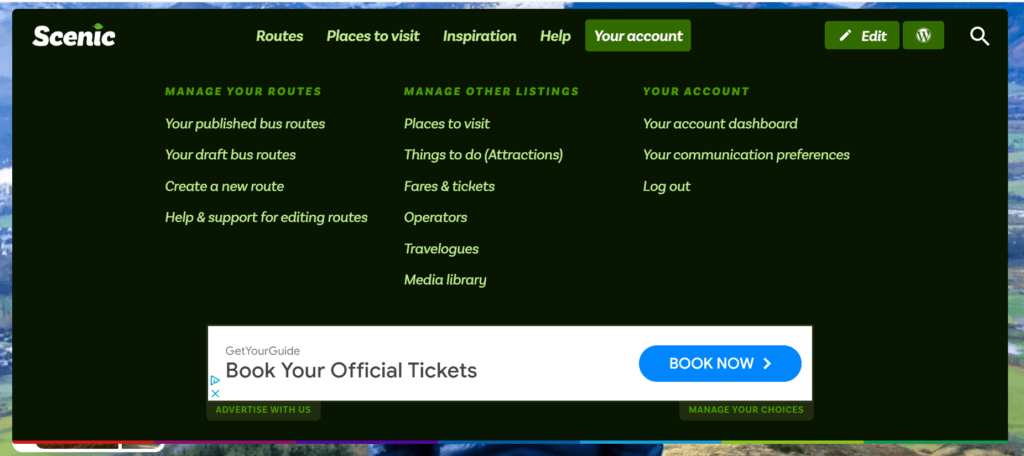
You may not see all of those links — the menu changes depending on which content types you’re allowed to edit.
These links are also available on a mobile device — just expand the “Your account” option from the main navigation.
The dashboard
All screenshots in these guides show the desktop view. You can perform all actions within the Scenic Listings Manager on your mobile phone too, though the layout may look a touch different.
Here’s how the dashboard of the Scenic Listings Manager looks. Yours may look a little different depending on which content types you’re allowed to edit.
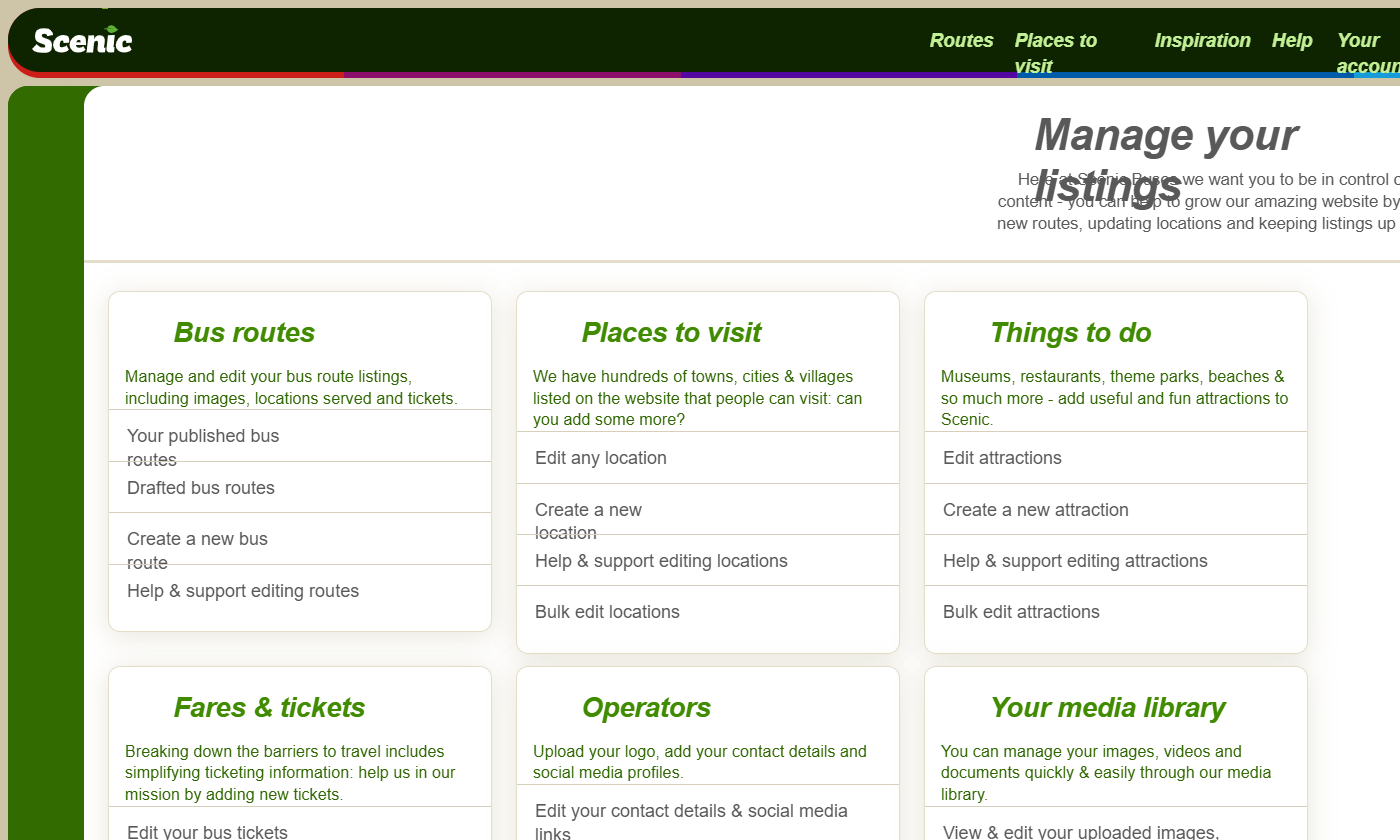
From here you’ll find links to manage each type of content available to you. Each section has its own dashboard showing the content you can edit. View the chapters within Scenic Docs to find guides for each section.
Leave a Reply