


This is the hub for all the information relating to a specific bus, coach or rail route listing in the Scenic Listings Manager.
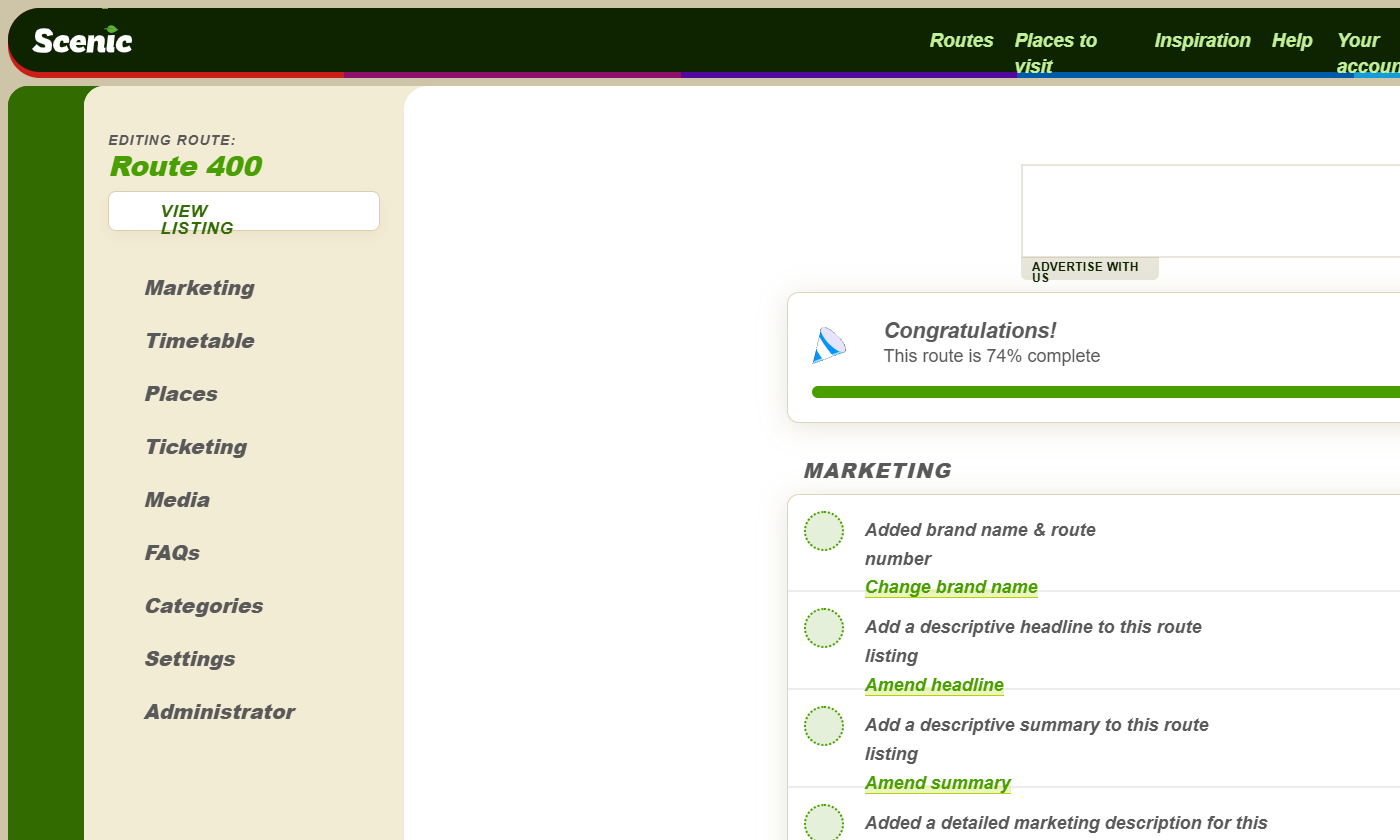
Once you’ve clicked to edit a published or draft route from the routes dashboard, you’ll be taken to the Route Editor. It’ll look something like this:
What’s in the Route Editor?
There are a few key things to note from the Route Editor.
The editor navigation
Here you’ll find an accordion-style list of all the pages in the editor. You can see this navigation at all stages of editing a route — it’s your anchor throughout the process.
You’ll see the route name in green at the top — this is a link back to the Route Editor dashboard, where you can view your progress and any alerts about your listing.
We’ve split the navigation into its key areas, making it easier to move between different parts of your listing.
The progress bar
At a glance, the progress bar shows you how complete your listing is. Don’t worry if it’s not 100% — very few listings are — but aim to stay above 75%.
Your progress score can go down as content ages — particularly timetables, maps and tickets. Keep those up to date — there’s nothing worse than out-of-date information for your passengers.
The task list
Here you’ll find all the tasks you need to complete for a listing.
- Tasks with a green tick are complete
- Tasks with a red cross are incomplete
- Tasks with an amber warning sign are partially complete
To complete a task, click the green link attached to it — you’ll be taken to the relevant edit page. We’d recommend working through the tasks in order. You’ll find a “Next step” prompt at the bottom of every form page to guide you through — this is what we call the Wizard Navigation.
Preview or view buttons
These buttons let you see how your listing looks after making changes. Under the route name in the editor navigation, you’ll see a white button that says either:
- View listing — shown on published routes. Any changes you make are published immediately.
- Preview listing — shown on draft routes. Changes are only visible to you.
Find out more about the difference between draft and published routes in the Scenic Docs.
Leave a Reply