


If the ticket has route-specific restrictions – i.e. on route A, you can only use this ticket between stop 1 and stop 12 – you can insert that information here.
When editing a ticket, go to “Buying info” > “Terms & restrictions” – you’ll see a form like this below:
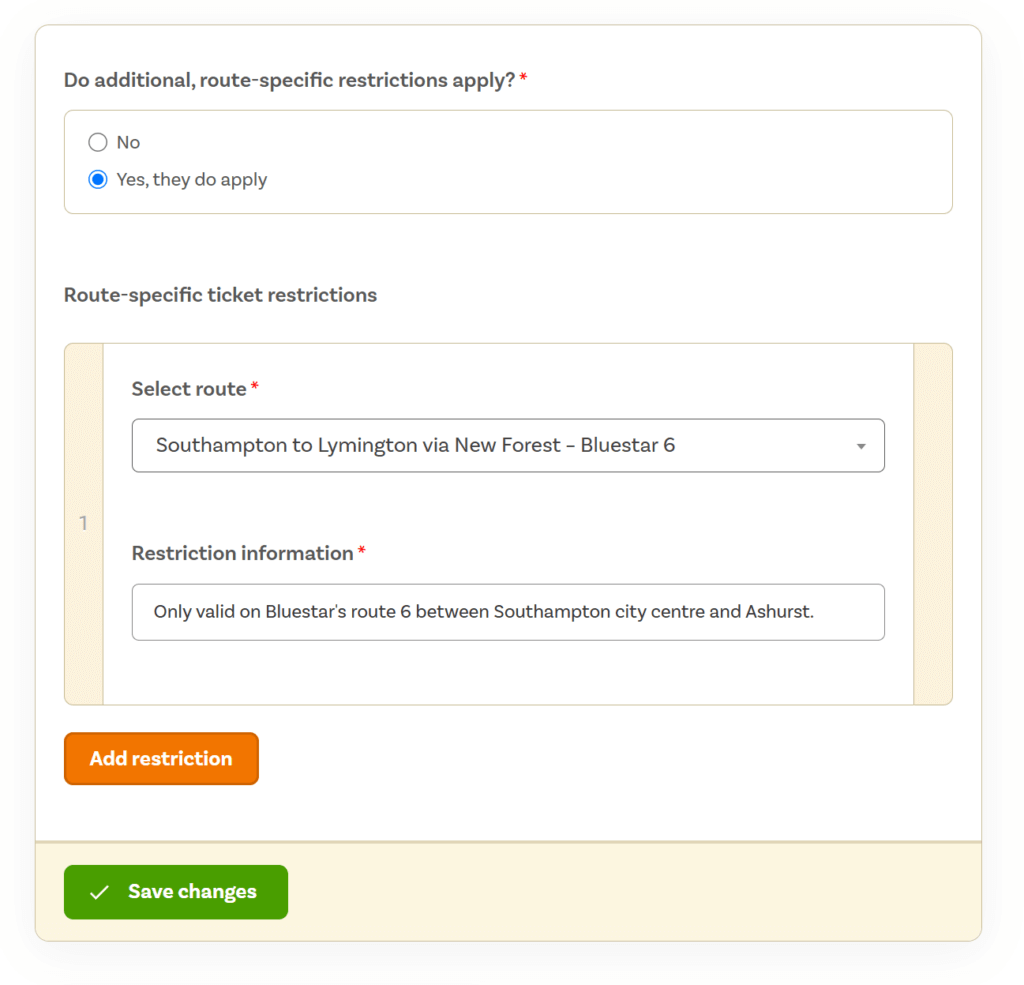
If you want to apply a restriction, select “Yes, they do apply” and then the orange “Add restriction” button – this will add a new mini-form where you can:
- Select the route listing on Scenic where this restriction applies
- The route you’re adding a restriction for must exist in Scenic, either as a published or draft route
- You will see all routes in this list, whether you can manage that route or not, useful for multi-operator tickets
- Add a message about validity – this message will only appear on the route listing corresponding with the selected route, it won’t show on other route listings
Add a restriction about a route or routes not on Scenic
You can add information about these types of restrictions within the “Marketing” > “Description” fields in the ticket dashboard.
How does this data show?
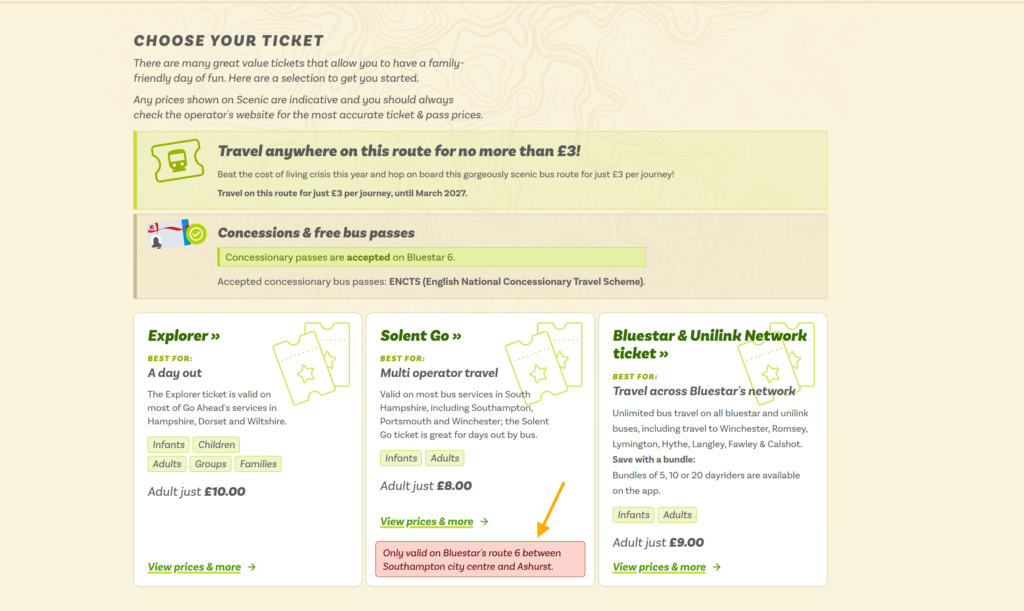
You can see from the screenshot below, from the Bluestar 6 listing, how the message shows when a route has a ticket restriction.
Leave a Reply